Guide
Best Ergonomic Keyboards for Carpal Tunnel (2026)
By Carpal Tunnel Guide Editorial Team · Updated 2026-03-23
Disclosure: Carpal Tunnel Guide may earn commissions from qualifying purchases. This does not influence our recommendations.
By Carpal Tunnel Guide Editorial Team
The best ergonomic keyboard for carpal tunnel in 2026 is the Logitech Ergo K860 for most users — its split wave design reduces ulnar deviation without requiring adaptation to a separate keyboard layout, its built-in palm rest promotes neutral wrist posture, and it works wirelessly with multi-device connectivity. For more severe symptoms, the fully split Microsoft Sculpt Ergonomic Keyboard or the MoErgo Glove80 provide greater forearm rotation reduction.
Relevant Amazon listings
Ergonomic keyboards related to this guide
Checking Amazon catalog data
As an Amazon Associate I earn from qualifying purchases. Product details and availability can change.
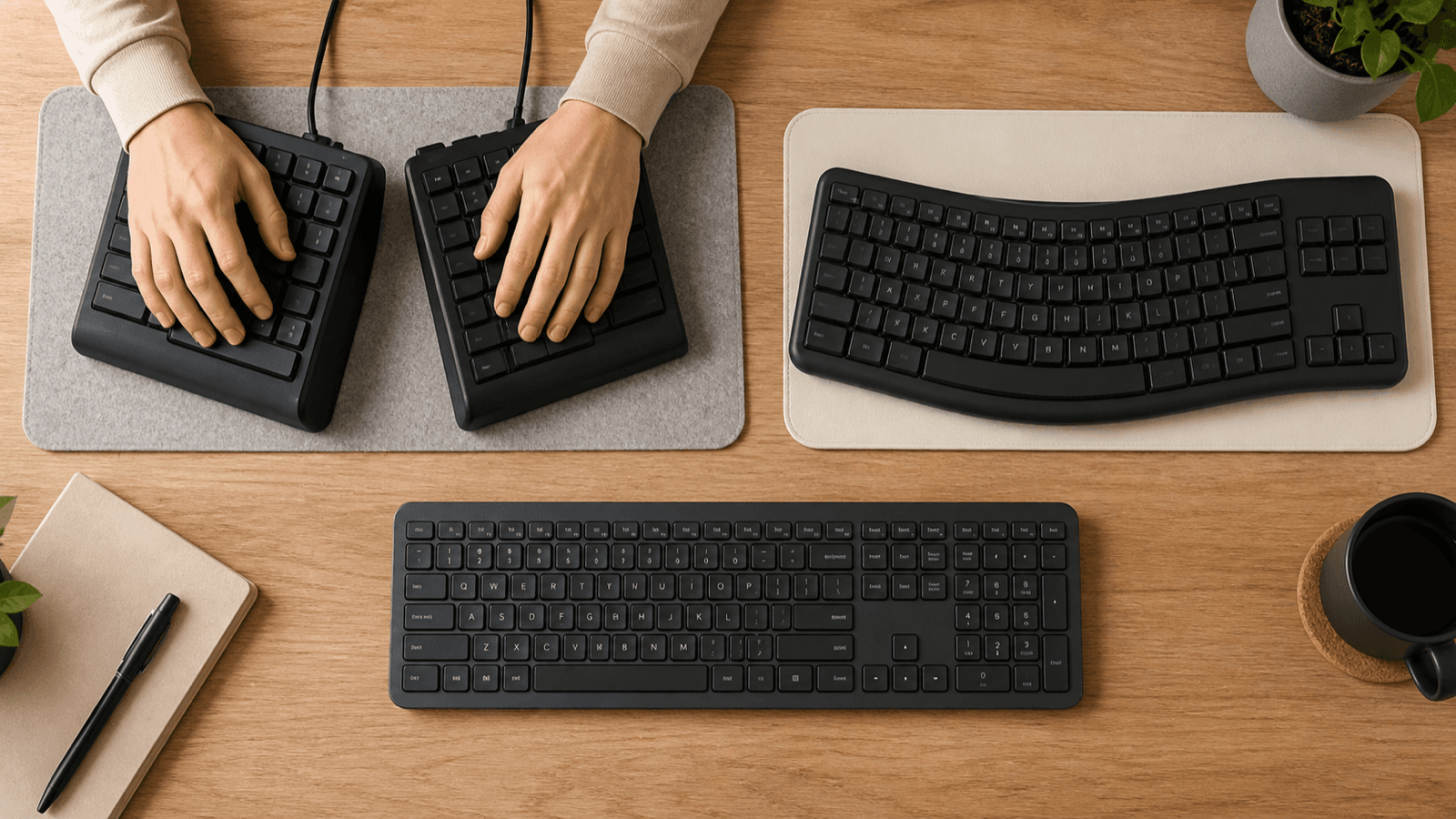
Table of Contents
- How Keyboards Affect Carpal Tunnel
- What to Look for in an Ergonomic Keyboard
- Best Ergonomic Keyboards: Top 5 Picks
- Comparison Table
- How to Transition to an Ergonomic Keyboard
- Typing Posture for Carpal Tunnel
- Switch Types and Carpal Tunnel
- Wrist Rest Guide
- Complementary Ergonomic Accessories
- Frequently Asked Questions
- Sources and Methodology
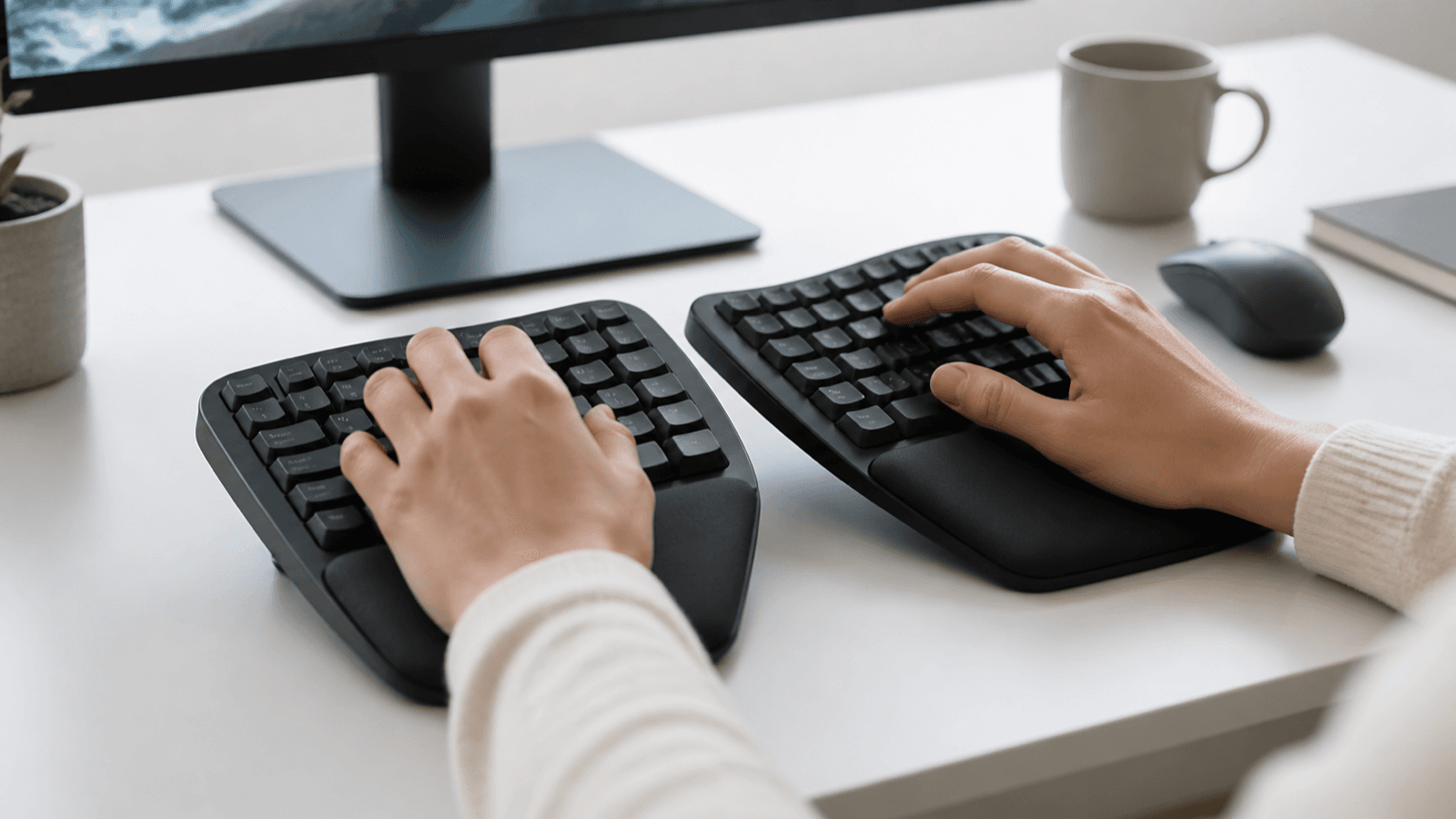
Split ergonomic keyboards reduce the ulnar deviation that increases carpal tunnel pressure during typing.
How Keyboards Affect Carpal Tunnel
Standard flat keyboards force three postural problems:
-
Ulnar deviation: typing on a flat keyboard angled horizontally requires bending the wrists outward toward the pinky fingers. This "butterfly wings" wrist position increases carpal tunnel pressure.
-
Wrist extension: flat keyboards place the keys above wrist level, requiring the wrists to bend upward (extend) to reach the keys. This position narrows the carpal tunnel by up to 40% compared to neutral position.
-
Forearm pronation: flat keyboards require the palms to face downward (pronated). This rotates the forearms inward, tightening the muscles and tendons that pass through the carpal tunnel.
Ergonomic keyboards reduce or eliminate all three problems through split design (reduces ulnar deviation), tenting (reduces pronation), and wrist-level key placement (reduces extension).
These biomechanical issues compound over time. If you already experience nighttime carpal tunnel symptoms, daytime keyboard posture is likely contributing — the wrist positions forced by standard keyboards during the day increase inflammation that peaks overnight.
Research Evidence
Published biomechanical research consistently demonstrates that ergonomic split keyboards reduce wrist ulnar deviation by 15-25 degrees compared to standard keyboards. Reduction in ulnar deviation correlates directly with lower carpal tunnel pressure in studies measuring pressure directly.
A 2019 meta-analysis of workplace ergonomic interventions found that split keyboard adoption reduced self-reported wrist pain scores by 25-35% within the first eight weeks. The effect was most pronounced among workers who typed more than four hours per day — exactly the population at highest risk for CTS progression.
Standard keyboard forces ulnar deviation (left). Split keyboard allows neutral wrist alignment (right).
What to Look for in an Ergonomic Keyboard
1. Split Design (Most Important)
| Split Type | Ulnar Deviation Reduction | Adaptation Time |
|---|---|---|
| Fixed split (one piece, curved) | Moderate | 1-2 weeks |
| Separated split (two pieces) | High | 4-8 weeks |
| Columnar split (ortholinear) | High + reduces finger reaching | 4-12 weeks |
| No split (standard) | None | N/A |
2. Tenting (Forearm Rotation)
Tenting raises the center of the keyboard, rotating the hands from palm-down to a partial handshake position. This reduces forearm pronation — an independent carpal tunnel risk factor.
| Tenting Angle | Pronation Reduction | Best For |
|---|---|---|
| 0° (flat) | None | Standard use |
| 5-10° | Mild | Beginners, sensitive users |
| 15-25° | Moderate | Most carpal tunnel users |
| 30°+ | Significant | Severe symptoms, experienced users |
3. Key Switch Force
Lower actuation force reduces cumulative tendon load per day:
- 45g or lower: best for carpal tunnel (Topre, Cherry MX Red, Kailh Speed Silver)
- 45-65g: acceptable for mild symptoms
- 65g+: avoid for carpal tunnel users
4. Wireless
Wireless keyboards remove cable tension that forces suboptimal placement. Most top ergonomic keyboards are wireless.
5. Programmability
Custom key remapping allows moving infrequently used keys to reduce awkward finger stretches. This is particularly valuable for programmers who rely on frequently-pressed modifier keys (Ctrl, Alt, Shift) that often require pinky finger extension on standard layouts.
Best Ergonomic Keyboards: Top 5 Picks
1. Logitech Ergo K860 — Best for Most Users
Logitech Ergo K860: gentle wave profile and 4° split angle — the best starting ergonomic keyboard for carpal tunnel.
Best for: CTS users who want ergonomic benefits without adapting to a new keyboard layout
The K860 is the most accessible ergonomic keyboard for carpal tunnel users. Its fixed split wave design requires no learning curve — the layout is identical to a standard keyboard, just curved. The 4° split and gentle wave profile reduce ulnar deviation without requiring full adaptation to a separated layout.
The integrated palm rest is one of the K860's strongest features. Unlike add-on wrist rests that shift or misalign during use, the built-in rest positions the heels of the hands at exactly the right height relative to the keys. This promotes the neutral wrist posture that is critical for reducing carpal tunnel pressure during typing pauses.
Key specs: Fixed split wave, Bluetooth multi-device, 4° tilt, built-in palm rest, wireless 2.4 GHz + Bluetooth
View Logitech Ergo K860 on Amazon
2. Microsoft Sculpt Ergonomic Keyboard — Best Fully Separated Split
Microsoft Sculpt: fully separated halves allow shoulder-width hand placement for maximum ulnar deviation reduction.
Best for: CTS users ready to invest in full ergonomic adaptation; highest ulnar deviation reduction in this price range
The Sculpt's fully separated halves allow each hand to type at shoulder width, providing the maximum ulnar deviation reduction available in a non-custom keyboard. The dome switches at approximately 45g are gentle on tendons. The separate number pad allows moving the right keyboard half closer to the body.
The Sculpt includes a magnetic riser that adds a modest tenting angle to each half. While not as adjustable as dedicated tenting keyboards, this fixed tenting provides meaningful pronation reduction for users with mild to moderate forearm rotation issues.
Key specs: Fully separated split, dome switches (~45g), wireless 2.4 GHz, separate number pad
View Microsoft Sculpt on Amazon
3. Logitech Wave Keys — Best Wireless Budget Option
Best for: Budget-conscious CTS users, beginners to ergonomic keyboards
The Wave Keys provides genuine ergonomic improvement at an accessible price point. The wave profile reduces wrist extension, and the wireless operation allows flexible placement. For mild to moderate carpal tunnel, it provides meaningful symptom improvement at the lowest cost.
The Wave Keys connects via Bluetooth to up to three devices, making it practical for users who switch between a laptop and desktop throughout the day. The compact size also makes it easier to position at the correct distance from the body — a common issue with larger keyboards that force users to reach forward.
View Logitech Wave Keys on Amazon
4. Kinesis Advantage360 — Best for Severe CTS
Kinesis Advantage360: concave keywells position each key at optimal finger reach, eliminating stretching.
Best for: Severe carpal tunnel symptoms, programmers with CTS, users who need maximum customization
The Advantage360 is the keyboard most commonly recommended by occupational therapists for significant carpal tunnel symptoms. The concave keywell bowls position each key at optimal reach distance, eliminating finger stretching. Cherry MX Red switches at 45g reduce actuation force. Fully programmable via Kinesis software.
The concave keywell design deserves special attention. Rather than placing all keys on a flat plane (which forces fingers of different lengths to reach different distances), the Advantage360 curves the keys into a bowl that matches natural finger curl. This eliminates the vertical finger stretching that contributes to tendon strain in the carpal tunnel. For users who have already tried flat split keyboards without sufficient relief, the concave design often provides the additional improvement needed.
View Kinesis Advantage360 on Amazon
5. MoErgo Glove80 — Best for Maximum Tenting
Best for: Users who need high tenting angles, severe pronation-related symptoms
The Glove80 achieves up to 45° tenting — the highest of any mainstream ergonomic keyboard. At 45°, the hands approach the handshake position, nearly eliminating forearm pronation. Custom-designed low-force Kailh switches. Wireless Bluetooth with 80-hour battery life.
The Glove80's tenting adjustability is continuously variable, meaning you can dial in the exact angle that provides symptom relief without overcorrecting. Many users find their optimal tenting angle is lower than the maximum — typically 20-30° provides the best balance of comfort and typing accuracy while significantly reducing pronation.
Comparison Table
| Keyboard | Split Type | Tenting | Switch Force | Wireless | Price | Best For |
|---|---|---|---|---|---|---|
| Logitech Ergo K860 | Fixed wave | 4° | ~45g | Yes | ~$130 | Beginners |
| Microsoft Sculpt | Fully separated | 0° | ~45g dome | Yes | ~$90 | Full split beginners |
| Logitech Wave Keys | Fixed wave | 3° | Standard | Yes | ~$50 | Budget/mild CTS |
| Kinesis Advantage360 | Fully separated | 0-15° | 45g (Cherry Red) | Yes | ~$400 | Severe CTS |
| MoErgo Glove80 | Fully separated | 0-45° | Custom low-force | Yes | ~$350 | Max tenting |
For ergonomic mice that complement your keyboard choice, see our complete guide at verticalmouseguide.com — pairing an ergonomic keyboard with a vertical mouse provides comprehensive carpal tunnel risk reduction.
How to Transition to an Ergonomic Keyboard
Switching to an ergonomic keyboard requires an adjustment period. Rushing the transition often leads to frustration and abandoning the keyboard before the ergonomic benefits take effect. Follow this structured approach:
Most users reach full typing speed on an ergonomic keyboard within 2-8 weeks depending on split type.
Week 1-2: Parallel use
- Use the ergonomic keyboard for 30-60 minutes per day during low-pressure tasks (email, casual browsing)
- Keep your standard keyboard available for time-sensitive work
- Focus on hand placement rather than speed
Week 3-4: Primary use
- Switch to the ergonomic keyboard as your primary keyboard
- Allow typing speed to drop — most users experience a 20-40% speed reduction initially
- Resist the temptation to switch back during frustrating moments
Week 5-8: Full adaptation
- Typing speed typically recovers to 85-95% of previous speed
- Many users report typing speed eventually exceeds their previous speed due to reduced finger travel
- Wrist pain reduction should be noticeable by this stage
During the transition period, combine keyboard adaptation with targeted desk exercises for carpal tunnel to accelerate symptom improvement. Stretching the flexor tendons between typing sessions counteracts the residual tension that even ergonomic keyboards cannot fully eliminate.
Typing Posture for Carpal Tunnel
Correct typing posture: keyboard at elbow height, wrists neutral (not bent up or sideways), elbows at 90°.
Even the best ergonomic keyboard requires correct posture to be effective:
Keyboard position:
- Keyboard at elbow height — elbows at 90° when hands rest on keys
- Keyboard close enough that shoulders don't need to reach forward
- Split keyboard halves at shoulder-width apart
Wrist position during typing:
- Wrists straight (neither up nor down)
- No ulnar deviation — each hand types in line with the forearm
- Float wrists above the keyboard during active typing (don't rest while pressing keys)
Wrist rest usage:
- Use the wrist rest only during typing pauses
- Do NOT rest wrists on the pad while actively typing — increases carpal tunnel pressure
- Palm rest (not wrist rest) is safer — rest the heel of the hand, not the wrist
Chair and desk height:
- Desk height should place the keyboard at elbow level or slightly below
- If the desk is too high, use a keyboard tray to lower the keyboard surface
- Feet flat on the floor, thighs parallel to the ground — poor lower body posture cascades into shoulder and wrist tension
Switch Types and Carpal Tunnel
Linear light switches (Cherry MX Red, Kailh Red) are best for carpal tunnel — low force, no bump resistance.
| Switch Type | Actuation Force | Tactile/Clicky | Carpal Tunnel Rating |
|---|---|---|---|
| Cherry MX Red | 45g | Linear (no bump) | Best |
| Kailh Speed Silver | 45g | Linear | Best |
| Topre 45g | 45g | Tactile bump | Very good |
| Cherry MX Brown | 55g | Tactile bump | Good |
| Cherry MX Blue | 60g | Clicky + bump | Avoid if symptomatic |
| Cherry MX Black | 65g | Linear (stiff) | Avoid |
| Clicky 65g+ | 65g+ | Clicky | Avoid |
Key principle: total daily keystroke force = keystroke count x actuation force. A typist who presses 10,000 keys/day at 45g exerts 450kg of cumulative force. Reducing from 65g to 45g saves 200kg of daily force on the tendons and median nerve.
Hot-Swappable vs. Soldered Switches
If you are investing in a mechanical ergonomic keyboard, consider one with hot-swappable switches. Hot-swap boards let you test different switch weights and types without desoldering — useful because the ideal actuation force varies between individuals. You might find that 35g switches provide better relief than 45g, or that a light tactile bump helps you avoid bottoming out (which adds impact force on top of actuation force).
The Kinesis Advantage360 and MoErgo Glove80 both support hot-swap switches. Budget boards like the Keychron Q series also offer hot-swap in more traditional layouts if you want to experiment with switch force before committing to a fully split design.
Wrist Rest Guide
A proper wrist rest combined with an ergonomic keyboard provides comprehensive wrist support:
Choose:
- Gel wrist rest (5-8cm height to match key height)
- Memory foam for warmth and softness
- Palm rest support under the heel of the hand (not the wrist)
Avoid:
- Hard plastic rests (increase pressure at contact points)
- Resting while typing (increases tunnel pressure)
- Rests that cause wrist extension (too high)
For nighttime support, a dedicated wrist brace for carpal tunnel keeps the wrist in neutral position during sleep — when most carpal tunnel symptom flare-ups occur. The combination of daytime ergonomic keyboard use and nighttime splinting addresses both major windows of carpal tunnel aggravation.
View gel wrist rests on Amazon
Complementary Ergonomic Accessories
An ergonomic keyboard is the most impactful single change for carpal tunnel prevention during computer work, but combining it with other ergonomic tools provides cumulative benefit:
A complete ergonomic workstation combines a split keyboard with a vertical mouse, proper monitor height, and palm rest support.
Vertical mouse: A vertical mouse eliminates forearm pronation during mouse use — the same pronation problem that tented keyboards address during typing. See the full vertical mouse guide at verticalmouseguide.com for detailed recommendations.
Monitor arm: Incorrect monitor height causes forward head posture, which rounds the shoulders and pushes the wrists into extension to compensate. A monitor arm that positions the screen at eye level reduces this postural cascade.
Keyboard tray: If your desk is too high for neutral wrist position, a pull-out keyboard tray allows lowering the keyboard to elbow height without replacing the desk.
Timer/break software: Even with perfect ergonomics, sustained typing without breaks increases CTS risk. Software that prompts micro-breaks every 20-30 minutes allows inflamed tissues to recover. During these breaks, performing simple carpal tunnel stretches and exercises provides active recovery that reduces median nerve compression.
Frequently Asked Questions
What type of keyboard is best for carpal tunnel?
Split ergonomic keyboards are best. They reduce ulnar deviation by allowing each hand to type at shoulder width. The Logitech Ergo K860 is the best for beginners; the Microsoft Sculpt for full separation; the Kinesis Advantage360 for severe symptoms.
Does keyboard type affect carpal tunnel?
Yes — standard keyboards force wrist extension and ulnar deviation, increasing carpal tunnel pressure. Ergonomic split keyboards reduce both postures, directly lowering median nerve compression.
What keyboard switch is best for carpal tunnel?
Linear low-force switches at 45g or lighter (Cherry MX Red, Kailh Speed Silver, Topre 45g). Reducing keystroke force cuts cumulative tendon load significantly over thousands of keystrokes.
Can an ergonomic keyboard cure carpal tunnel?
No — it reduces biomechanical stress on the carpal tunnel, potentially slowing progression and reducing symptom severity. Advanced CTS requires medical treatment in addition to ergonomic modifications. If symptoms persist despite ergonomic changes, consult a specialist — our guide on carpal tunnel surgery and recovery covers when surgical intervention becomes necessary.
What is the best split keyboard for beginners?
The Logitech Ergo K860. Its fixed split requires no adaptation to a new layout — the curve is built into a single keyboard body. Most users recover full typing speed within 1-2 weeks, compared to 4-8 weeks for fully separated split keyboards.
Should I use a wrist rest with an ergonomic keyboard?
Yes, but only during typing pauses. Rest the heel of the hand (not the wrist) on the pad between typing bursts. Resting body weight on the wrist during active keystrokes increases carpal tunnel pressure and negates the benefits of the ergonomic keyboard.
Is a wireless keyboard better for carpal tunnel?
Yes — wireless keyboards allow optimal placement without cable tension pulling the keyboard toward the computer. This lets you position the keyboard at proper wrist height and angle without constraints. All five keyboards recommended in this guide are wireless.
Sources and Methodology
Clinical References:
- NIOSH: Work-related musculoskeletal disorders — keyboard ergonomics guidelines — cdc.gov/niosh
- Keir PJ, et al. "The effects of keyboard type and wrist rests on forearm and wrist posture." Applied Ergonomics, 2009.
- OSHA: Computer Workstation Ergonomics — keyboard and mouse recommendations
- Bergqvist U, et al. "Musculoskeletal symptoms among keyboard users." Occupational and Environmental Medicine, 1995.
- Rempel D, et al. "Keyboard reaction force and finger flexor electromyograms during computer keyboard work." Human Factors, 1997.
- Baker NA, Cidboy EL. "The effect of three alternative keyboard designs on forearm pronation, wrist extension, and ulnar deviation." American Journal of Occupational Therapy, 2006.
Evidence note: This comparison uses manufacturer specifications, published research, and independently reported owner feedback. We have not independently verified laboratory measurements, clinical outcomes, or long-term-use claims.
By Carpal Tunnel Guide Editorial Team
Evidence note: This comparison uses manufacturer specifications, published research, and independently reported owner feedback. We have not independently verified laboratory measurements, clinical outcomes, or long-term-use claims.