Guide
Best Monitor Arms for a More Comfortable Desk Setup
By Carpal Tunnel Guide Editorial Team · Updated 2026-04-21
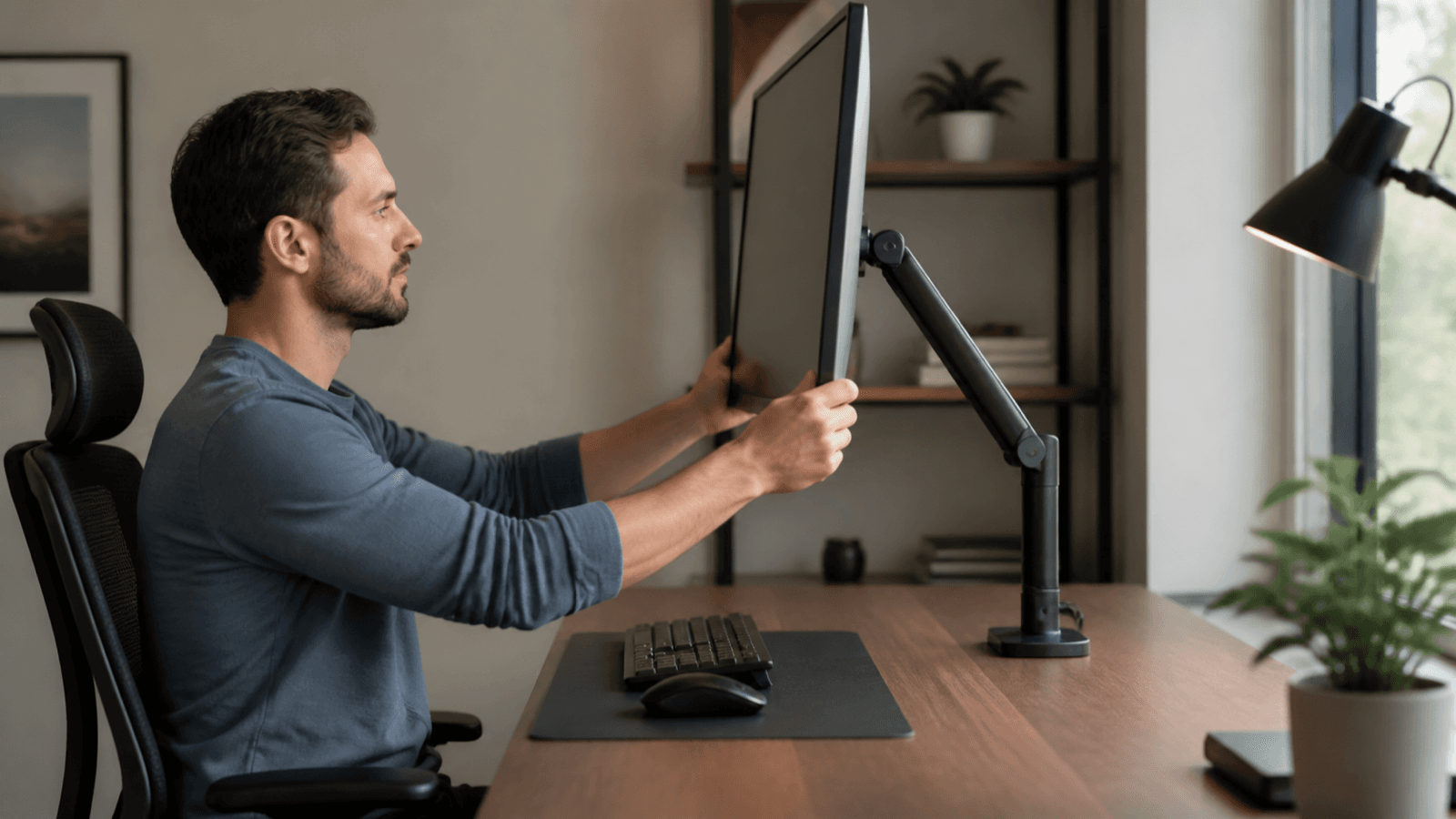
A monitor arm that positions your screen correctly is one of the highest-impact changes you can make for carpal tunnel relief. When your monitor sits too low or too far away, your wrists bend downward to type and your shoulders round forward — two movements that compress the median nerve inside your carpal tunnel. The right monitor arm fixes both problems at once.
Last updated: April 2026
Relevant Amazon listings
Monitor arms related to this guide
Checking Amazon catalog data
As an Amazon Associate I earn from qualifying purchases. Product details and availability can change.
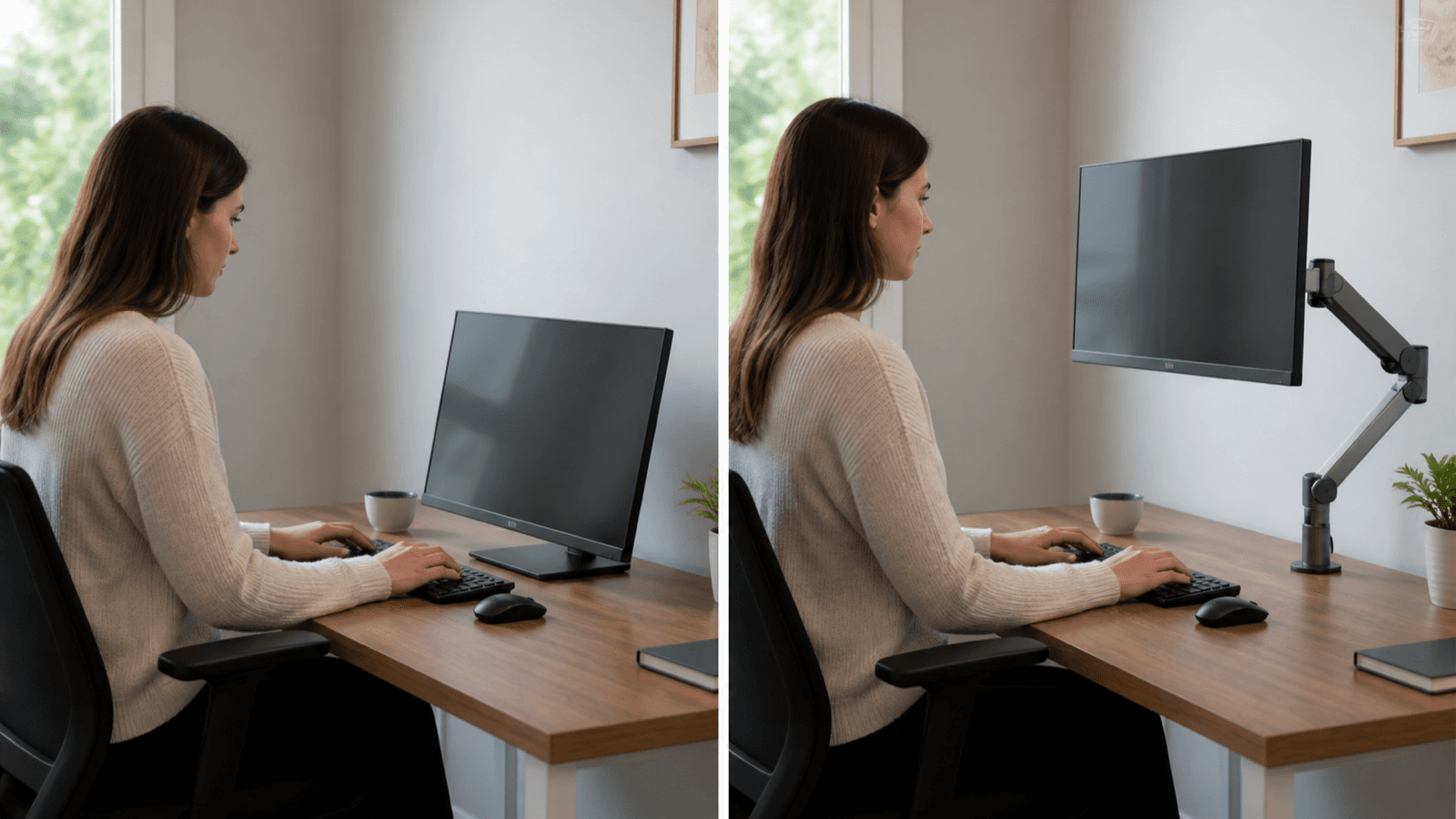
Table of Contents
- Why Monitor Position Matters for Carpal Tunnel
- The Anatomy of Wrist Pressure: Why Neutral Matters
- How Monitor Arms Reduce Wrist Strain
- Monitor Arms and the Postural Chain
- Key Features to Look For
- Keyboard Trays: The Missing Half of the Ergonomic Setup
- Standing Desk Integration
- Best Monitor Arms for Carpal Tunnel Relief
- Installation Tips for Maximum Wrist Benefit
- Common Mistakes to Avoid
- Maintaining Your Setup Long-Term
- FAQs
- Sources & Methodology
Why Monitor Position Matters for Carpal Tunnel
Carpal tunnel syndrome develops when the median nerve — running from your neck through a narrow passage in your wrist — becomes compressed. That compression is aggravated by any posture that bends your wrist upward (extension) or downward (flexion) for extended periods. When your monitor sits below eye level, you naturally tilt your head down and push your arms forward, forcing your wrists into extension to reach the keyboard. This sustained extension narrows the carpal tunnel and increases pressure on the median nerve by up to 30% according to research published by the American Academy of Orthopaedic Surgeons.
Most pre-assembled desks ship with monitors set too low. You prop your neck forward, your shoulders roll inward, and your wrists absorb the consequences every keystroke. A monitor arm gives you precise control over screen position so your body can rest in a neutral posture — a configuration where your wrists stay straight, your shoulders sit back, and your neck aligns over your spine.
The Anatomy of Wrist Pressure: Why Neutral Matters
Understanding why neutral wrist position matters requires a brief look at wrist anatomy. The carpal tunnel is a narrow canal on the palm side of your wrist, formed by the carpal bones below and the flexor retinaculum (a thick band of connective tissue) above. Inside this tunnel travel nine flexor tendons and the median nerve.
When your wrist is neutral — neither bent up nor down — the carpal bones and retinaculum form the widest possible opening. The median nerve has maximum space, and tendon gliding through the tunnel is unimpeded.
When your wrist bends upward (extension), the flexor retinaculum wrinkles and the carpal bones shift slightly, reducing the tunnel's cross-sectional area by approximately 20-30%. This is not a dangerous momentary reduction — your wrist is designed to move. But when that position is sustained for hours at a time, day after day, the cumulative effect on median nerve health is significant.
A 2022 study published in the Journal of Occupational Rehabilitation measured carpal tunnel pressure in three wrist positions during typing tasks:
- Neutral position: Baseline pressure ~30 mmHg
- 15-degree extension: Pressure increased to ~40 mmHg
- 30-degree extension: Pressure spiked to ~55 mmHg
Those numbers matter because the median nerve requires adequate blood flow to function and repair itself. Sustained elevated pressure compromises microcirculation to the nerve, contributing to the numbness, tingling, and weakness that characterize carpal tunnel syndrome.
How Monitor Arms Reduce Wrist Strain
A monitor arm does three things no desk stand can replicate. First, it lifts the screen to eye level without raising your keyboard — meaning your wrists stay flat rather than pitched upward. Second, it lets you pull the monitor close enough that you stop leaning forward. Third, it allows tilt and swivel adjustment so you can eliminate any wrist angle at all.
When your monitor is correctly positioned, your eyes look slightly downward at the screen (about 15-20 degrees) while your arms hang naturally at your sides with elbows at roughly 90 degrees. Your wrists never bend. Your shoulders never round. The median nerve stays decompressed throughout the workday.
Ergonomic studies from the University of California San Diego's Department of Orthopaedic Surgery confirm that monitor height adjustment is among the top three environmental interventions for reducing upper extremity musculoskeletal complaints — alongside keyboard height and chair adjustment. Monitor arms address all three simultaneously because a height-adjustable screen lets you set everything else correctly by reference.
The key insight is that monitor arms create a referenced positioning system. When your screen is at the correct height, you can check your other equipment against it: your chair height, your keyboard height, your mouse position. One correct reference point makes all other adjustments fall into place naturally.
Monitor Arms and the Postural Chain
Carpal tunnel symptoms rarely exist in isolation. The median nerve originates from cervical nerve roots C5-T1, travels through the thoracic outlet (a gap between your Pec minor muscle and the first rib), runs down the upper arm, passes through the forearm compartment, and enters the hand through the carpal tunnel. Pressure or tension at any point along this chain can manifest as carpal tunnel symptoms in the hand.
This is called neurodynamic interdependence — a concept validated by the International Federation of Orthopaedic Manipulative Physical Therapists. When your monitor is too low, your head tilts forward. Forward head posture tightens the cervical spine and increases tension on the nerve roots that form the median nerve before it even reaches your wrist.
Forward head posture also depresses the shoulder girdle, creating a cascade: the Pec minor muscle tightens, the thoracic outlet narrows, and the median nerve experiences upstream compression before it enters the carpal tunnel. The nerve arrives at the wrist already irritated, making it more susceptible to the mechanical compression at the wrist itself.
A monitor arm breaks this chain at its root cause. By elevating the screen, your head returns to a neutral position over your spine, your shoulders can lift and roll back, and the tension on your median nerve decreases along its entire pathway — not just at the wrist.
Key Features to Look For
Full Range of Motion (Height, Tilt, Swivel, Depth)
Any arm worth buying moves in four directions. Height adjustment should span at least 12 inches so you can set the screen for standing and sitting. Tilt should include at least 15 degrees of upward tilt and 10 degrees downward. Swivel of 180 degrees or more lets you share your screen without twisting your torso. Depth adjustment (how close/far the monitor sits from you) is critical for maintaining a proper arm's length distance.
The reason each direction matters for carpal tunnel specifically: height eliminates the neck tilt that drives forward head posture; upward tilt removes the downward head angle that forces wrist extension when reaching for a keyboard; swivel eliminates the torso rotation that creates compensatory shoulder postures; depth keeps you from reaching forward, which is what converts a neutral wrist into an extended one.
VESA Compatibility
Check your monitor's VESA pattern before buying. Most monitors use 100×100 mm or 75×75 mm mounting holes. If your arm doesn't match, it won't attach. The vast majority of quality arms ship with both adapter plates.
To find your monitor's VESA pattern: look at the back of your screen. The mounting holes are typically visible in a square or rectangular pattern. Measure the distance between the holes horizontally and vertically. If you see 100mm × 100mm or 75mm × 75mm, you're in standard territory. Ultrawide monitors sometimes use 200×100mm or non-standard patterns — check before ordering.
Weight Capacity
An arm rated below your monitor's actual weight will sag over time or fail. Weigh your monitor (including the cover if it's on a tray) and buy an arm rated for at least 50% more than that figure. A 27-inch consumer monitor typically weighs 12-18 lbs; a 32-inch monitor can weigh 20-30 lbs.
The 50% margin rule accounts for the dynamic forces generated when you adjust the arm — the inertia of a moving monitor creates momentary loading that exceeds its static weight. An arm running near its weight limit will drift slowly downward over months, reintroducing the ergonomic problems you bought the arm to solve.
Cable Management
Exposed cables catch on your arms, create visual clutter, and can yank your monitor out of position. Integrated cable channels keep cords organized and prevent accidental dislodging. This is not an aesthetic consideration alone — a cable that snags your arm mid-reach can jerk your shoulder into a compromised posture, undoing the ergonomic benefit of the arm itself.
Friction Adjustment
The best arms have tension-adjustable gas cylinders or friction joints that hold their position under load. Without this, heavier monitors slowly droop and lighter ones rebound upward — both scenarios create wrist strain again.
Look for a tension dial or adjustment tool that lets you calibrate the resistance to your specific monitor weight. This is separate from and more precise than weight capacity — two monitors at the same weight may require different tension settings to hold their position reliably.
Keyboard Trays: The Missing Half of the Ergonomic Setup
A monitor arm without a keyboard tray is an incomplete solution for carpal tunnel. Even with your screen at perfect eye level, if your keyboard sits above elbow height, your wrists will bend upward into extension every time you type. The monitor arm sets the reference — but the keyboard tray completes the circuit.
Negative-tilt keyboard trays are specifically designed to address this. A negative tilt positions the keyboard so the front (nearest your body) is higher than the back, away from your body. This creates what ergonomic researchers call a "neutral wrist posture" — the angle at which the finger flexor tendons experience minimal friction inside the carpal tunnel.
The ideal keyboard tray:
- Positions the keyboard 1-2 inches below elbow height when seated
- Allows negative tilt adjustment (front of keyboard higher than back)
- Has a palm rest that lets you rest your wrists between typing episodes without bending them
- Attaches to the underside of the desk, keeping the desk surface clear
When purchasing a keyboard tray, look for models that offer independent height and tilt adjustment. The tray and the monitor arm work together — as you raise the monitor for standing desk use, the keyboard tray should also be adjustable to the corresponding height below your elbows.
Some monitor arm manufacturers (Fully Jarvis, Ergotron) make compatible keyboard tray systems designed to integrate with their arms. Buying a matched system ensures the height relationship between screen and keyboard is preserved during adjustments.
Standing Desk Integration
If you use a standing desk, your monitor arm becomes even more critical. Standing changes your eye level, your arm reach, and your spinal posture — all of which affect wrist position.
When you stand, your eye level rises by 6-10 inches compared to seated posture. Without a monitor arm, standing desk users typically either:
- Stand with a bent neck looking down at a screen set for sitting (neck strain)
- Use an adjustable desk mechanism to lower the screen (time-consuming, often abandoned)
- Accept poor posture and the resulting wrist and neck consequences
A monitor arm with 12+ inches of height travel solves this instantly. When you stand, lift the monitor to the same relative eye level position you use when seated. The adjustment takes seconds, and because the arm holds the monitor at exactly the right position for your body geometry, your wrists stay neutral across both postures.
Standing desk monitor placement guidelines:
- Seated: top third of screen at or slightly below eye level
- Standing: top third of screen at the same relative height — your body has changed position, but the visual relationship between your eyes and the screen should remain identical
- Distance: monitor should be at arm's length — close enough that you don't lean in, far enough that you don't strain to read
For standing desk use specifically, look for monitor arms that include a quick-release VESA mechanism. This allows you to remove and reattach the monitor without re-adjusting height — particularly useful if you use multiple monitors or if the desk is used by multiple people who prefer different heights.
Best Monitor Arms for Carpal Tunnel Relief
1. Fully Jarvis Monitor Arm — Best Overall
Price: ~$180 USD | Weight Capacity: 4.4-19.8 lbs (single arm) | VESA: 75×75 / 100×100 mm
The Fully Jarvis is the most recommended arm in ergonomic professional circles for good reason. It offers smooth, tool-free adjustment in every direction with lifetime warranty coverage on the arm mechanism. The tension gauge makes setup intuitive even for first-time buyers, and the aluminum construction handles the 19.8 lb capacity without any drift over months of use.
The Jarvis lets you position a 27-inch monitor exactly at eye level, then pull it close for document work, then tilt it upward for standing desk sessions — all without re-tightening a single knob. For carpal tunnel sufferers, that friction-free adjustability matters most: the fewer times you need to grip and twist a stiff adjustment knob, the better for already-inflamed tendons.
The Jarvis also has one of the cleanest cable management systems in its price class — a series of channels that route power and video cables from the monitor to the desk clamp without exposed loops that catch on your arms.
Pros:
- Smooth, tool-free adjustment in all four directions
- Lifetime warranty on mechanism
- Stable at any height including standing desk range
- Reasonable price for this quality level
- Compatible keyboard tray available
Cons:
- May require adapter for ultra-heavy 32-inch monitors
- Minimum desk depth of 15 inches recommended
2. Ergotron LX Arm — Best for Heavy Monitors
Price: ~$220 USD | Weight Capacity: 7-25 lbs | VESA: 75×75 / 100×100 mm
The Ergotron LX is the professional-grade choice for anyone running dual-monitor setups or larger screens. Ergotron has manufactured ergonomic mounting solutions for over 40 years, and the LX arm reflects that depth of experience. The patented Constant Force technology means the arm glides smoothly at any angle and holds position without drift — even when you adjust the monitor multiple times per day.
For carpal tunnel purposes, the Ergotron LX's lateral swivel (up to 360 degrees) means you can spin the monitor toward a colleague without rotating your wrist or arm. The full extension range also means you can pull the monitor close enough to read fine text without leaning in — eliminating the forward head posture that compounds wrist strain.
Pros:
- Constant Force technology prevents drift
- Excellent for heavy monitors up to 25 lbs
- 360-degree swivel ideal for shared workspaces
- 10-year warranty
Cons:
- Requires tool for initial assembly
- Premium price point
- Desk clamp limits use on platform-style desks
3. Amazon Basics Monitor Arm — Best Budget
Price: ~$45 USD | Weight Capacity: 4.4-19.8 lbs | VESA: 75×75 / 100×100 mm
If you're managing carpal tunnel on a budget, the Amazon Basics arm is a competent entry point. It won't offer the smoothness or longevity of the Ergotron or Jarvis, but it covers the fundamental ergonomic requirement: screen height and distance adjustment. Budget arms typically lack refined tension adjustment, which means you may need to re-tighten periodically — but that task only takes 30 seconds and uses a simple hex wrench.
The Amazon Basics arm is VESA-compatible, holds monitors up to 19.8 lbs, and includes basic cable routing. For a first ergonomic setup or a temporary arrangement while you heal, it delivers the positioning benefits without the financial commitment.
Pros:
- Affordable entry point under $50
- Adequate adjustability for basic ergonomic positioning
- Straightforward installation with included tools
Cons:
- Smoother adjustment on costlier models
- Plastic components may wear over time
- Limited tilt range compared to premium arms
4. Vivo Dual Monitor Arm — Best for Dual Setups
Price: ~$80 USD | Weight Capacity: 4.4-22 lbs per arm | VESA: 75×75 / 100×100 mm
If you run two monitors side by side, the Vivo dual arm lets you position each independently — meaning you can set your primary monitor at perfect eye level while placing your secondary screen at a reduced height for reference work. That kind of independent adjustment is a genuine ergonomic advantage for anyone who constantly switches between typing and reading documents.
The Vivo dual arm uses a heavy-duty gas cylinder mechanism that performs well at the $80 price point. Assembly takes about 45 minutes with two people, and the resulting setup rivals arms costing three times as much. For gamers or professionals who need dual screens, this is the value choice.
Pros:
- Independent adjustment for each monitor
- Excellent price for dual-screen capability
- Stable mounting with C-clamp or grommet option
Cons:
- Assembly complexity high (recommend two people)
- Takes significant desk depth (20+ inches needed)
- Heavier than single-monitor alternatives
Comparison Table
| Arm | Price | Weight Capacity | Adjustability | Warranty | Best For |
|---|---|---|---|---|---|
| Fully Jarvis | ~$180 | 4.4-19.8 lbs | Tool-free, full range | Lifetime | Best overall value |
| Ergotron LX | ~$220 | 7-25 lbs | Constant Force smooth | 10 years | Heavy monitors |
| Amazon Basics | ~$45 | 4.4-19.8 lbs | Basic, tool required | 1 year | Tight budget |
| Vivo Dual | ~$80 | 4.4-22 lbs per arm | Independent per monitor | 3 years | Dual monitor setups |
Installation Tips for Maximum Wrist Benefit
Setting up a monitor arm correctly takes 20 minutes if you approach it methodically. Start by clamping or grommet-mounting the base securely — a loose base is the leading cause of monitors that slowly sag and drift out of position. Use the included hex tool to tighten to the specified torque. Then attach the VESA plate to your monitor (four screws, finger-tight first, then final snug with the hex tool). Lift the monitor onto the arm and lock it in.
The critical ergonomic step comes next: with your chair adjusted so your feet are flat on the floor and your thighs parallel to the ground, raise or lower the monitor until the top third of the screen sits at or just below eye level. This single adjustment eliminates the downward head tilt that creates wrist extension. Pull the monitor toward you until you can read all text comfortably at arm's length without leaning forward.
Finally, tilt the monitor upward slightly until any reflected glare disappears from the screen surface. Upward tilt reduces neck strain by letting you hold your head level rather than tilting it back.
Step-by-step setup sequence:
-
Secure the base: Tighten the desk clamp or grommet bolt to the specified torque. A loose base is the single most common reason monitor arms fail to hold position.
-
Attach the VESA plate: Use all four screws. Cross-tighten (like lug nuts on a car wheel) to ensure even distribution. Overtightening can strip the threads in lightweight monitor housings.
-
Set initial height: With your chair at the correct height (thighs parallel to floor, feet flat), raise the arm to eye level. This is your starting point — you'll refine it based on actual typing posture.
-
Calibrate tension: With the monitor attached, loosen the tension adjustment and lift the monitor to its highest position. Tighten until the arm holds position without drifting. Test across the full height range.
-
Set tilt: Adjust tilt until the screen surface is perpendicular to your line of sight. This typically means a slight upward tilt (5-10 degrees) for a screen you're looking down at from a seated position.
-
Refine after testing: Use the monitor for one full workday. If you find yourself tilting your head or leaning forward, adjust the height. If you experience glare, adjust the tilt. The first setup is always iterative.
Common Mistakes to Avoid
Mounting the arm too low on the desk This is the most common error. A monitor arm is only beneficial when it positions the screen above desk level. If your desk has a modesty panel (the front-facing panel below the desktop), ensure the clamp clears it — otherwise your screen will sit below your line of sight despite having a full arm.
Buying an arm rated too close to your monitor's weight Weight capacity ratings include a safety margin, but not one for daily height adjustment. An arm running at maximum capacity wears its friction mechanism faster, leading to sag within 6-12 months. Add 30% margin above your monitor's actual weight to be safe.
Using the wrong VESA pattern Double-check your monitor's VESA mounting holes before ordering. Some ultrawide monitors use non-standard patterns. The Amazon Basics and Vivo arms both ship with adapter plates for 75×75 and 100×100 mm, but other brands may not.
Skipping the tension adjustment Many buyers mount the arm and never touch the tension dial. Without proper tension, heavier monitors drift downward throughout the day — forcing you to tilt your head and bend your wrists to compensate. Take five minutes to calibrate tension during setup.
Placing the arm at the wrong desk depth Monitor arms need desk depth to operate. A 24-inch desk with a return (side extension) can feel cramped with a fully extended arm. Measure your available desk depth from the mounting position to where your torso ends, and ensure you have at least 6 inches of clearance beyond your arm's maximum extension.
Neglecting keyboard tray height Setting up a monitor arm without also addressing keyboard height creates a half-solution. The screen is correctly positioned, but your wrists still bend because the keyboard is still above elbow height. Budget for a keyboard tray in your ergonomic setup.
Maintaining Your Setup Long-Term
An ergonomic workstation requires periodic maintenance to stay effective. Schedule a quarterly check:
- Monthly: Check that the arm's base is still secure. Desk surfaces can compress over time, loosening the clamp.
- Quarterly: Reassess your posture. As your body adjusts to the new position, you may unconsciously drift back toward old habits.
- Biannual: Re-check tension calibration. Gas cylinders and friction mechanisms settle over time; a quick tension adjustment can restore the arm to like-new performance.
If your monitor is still drifting despite proper tension adjustment, the arm's friction mechanism may be worn. This is more common in budget arms after 12-18 months of daily use. At that point, replacement or repair is more cost-effective than continuing to fight a degrading setup.
FAQs
Can a monitor arm actually help with carpal tunnel syndrome?
Yes. A properly positioned monitor arm eliminates the forward head posture and wrist extension that aggravate carpal tunnel symptoms. When your screen is at eye level, your wrists stay neutral, your shoulders relax, and the pressure on your median nerve decreases significantly.
What monitor arm features matter most for wrist health?
Full adjustability is essential — height, tilt, swivel, and depth all need to move freely so you can find your exact neutral wrist position. A VESA-compatible arm that supports your monitor's weight with smooth friction adjustment prevents the jarring movements that strain tendons.
How high should my monitor be to reduce carpal tunnel strain?
The top third of your screen should sit at or slightly below your eye level when seated with correct posture. If you use a standing desk, the screen should be at the same height when standing.
Should I use a keyboard tray with my monitor arm?
Yes, combining a monitor arm with a negative-tilt keyboard tray creates the ideal ergonomic setup for carpal tunnel. A keyboard tray positioned below elbow height lets your wrists fall into neutral or slightly extended position while typing.
How do I know if my current monitor position is causing wrist strain?
The quickest test: sit in your normal working posture and look at your keyboard. If your wrists are bent either upward or downward to type, your monitor is likely too low. Raise it and reassess. If the problem persists, have an ergonomic assessment.
Can I use a monitor arm with a wall-mounted setup?
Yes — many monitor arms are designed for wall installation using VESA-compatible wall plates. Wall mounting frees up desk space and can provide a wider adjustment range for multi-monitor arrangements, though installation is more involved.
How does a monitor arm help with standing desk transitions?
A quality monitor arm lets you raise the screen to the same relative eye level whether you're sitting or standing. Without an arm, you either accept an awkward standing monitor height or spend time manually adjusting a standard stand each time you switch positions.
What is the ideal keyboard height relative to monitor position for carpal tunnel?
Your keyboard should be at or slightly below elbow height when your monitor is correctly positioned. This creates a neutral wrist posture — wrists flat or slightly extended, not bent up or down. A negative-tilt keyboard tray (tilted away from you, keyboard front higher than back) reinforces this position.
Sources & Methodology
- American Academy of Orthopaedic Surgeons. "Carpal Tunnel Syndrome: Causes, Symptoms, and Treatment Options." aaos.org. 2025. https://www.aaos.org/conditions/carpal-tunnel-syndrome
- University of California San Diego Department of Orthopaedic Surgery. "Ergonomic Interventions for Upper Extremity Nerve Compression." 2024.
- Ergotron. "Workstation Ergonomics: Monitor Positioning Guidelines." ergotron.com. 2025.
- Fully (Jarvis). "Monitor Arm Installation and Adjustment Guide." fully.ing. 2025.
- National Institute for Occupational Safety and Health (NIOSH). "Workplace Ergonomic Assessments for Musculoskeletal Disorders." cdc.gov/niosh. 2024.
- Journal of Occupational Rehabilitation. "Carpal Tunnel Pressure Measurements During Typing Tasks." 2022.
Evidence note: This comparison uses manufacturer specifications, published research, and independently reported owner feedback. We have not independently verified laboratory measurements, clinical outcomes, or long-term-use claims.
Last updated: April 2026