Guide
Desk Setup for Carpal Tunnel Risk Reduction (2026)
By Carpal Tunnel Guide Editorial Team · Updated 2026-03-10

title: Best Desk Setup for Carpal Tunnel Prevention (2026) description: >- Create an ergonomic desk setup that actually prevents carpal tunnel. This 2026 guide covers monitor height, keyboard angle, mouse position, lighting, and more. slug: best-desk-setup-carpal-tunnel-prevention-2026 publishedAt: '2026-04-21' dateModified: '2026-04-21' author: 'Rachel, Ergonomic Health Specialist' category: Carpal Tunnel Syndrome image: /editorial-hero.png
- '@type': Question name: What is the best desk height to prevent carpal tunnel? acceptedAnswer: '@type': Answer text: >- The ideal desk height places your elbows at 90 degrees when your forearms are parallel to the floor. Most standard desks are 28–30 inches high, which works well for people between 5'8" and 6'0". If you are shorter or taller, an adjustable desk or keyboard tray that can be positioned independently of the overall desk height is the best solution. The goal is to keep your wrists neutral and your forearms parallel to the floor or slightly below.
- '@type': Question name: >- Should I use a flat keyboard or a split keyboard for carpal tunnel prevention? acceptedAnswer: '@type': Answer text: >- Both flat and split keyboards can be ergonomic when used correctly. The most important factor is keeping your wrists in a neutral (straight) position, not bent up or down. Split keyboards naturally angle your hands outward, which can reduce forearm pronation and ulnar deviation for some users. However, a flat keyboard used with proper posture and a negative tilt (back edge higher than front edge) can be equally effective. If you type heavily and have existing wrist issues, a split keyboard is worth trying.
- '@type': Question name: How high should my monitor be to reduce wrist strain? acceptedAnswer: '@type': Answer text: >- The top of your monitor should be at or slightly below eye level, so you look slightly downward at the screen. This reduces neck strain and allows you to keep your shoulders relaxed, which indirectly benefits your wrists. When shoulders are elevated or forward, forearm muscles tense up, increasing pressure in the carpal tunnel. A monitor riser, monitor arm, or books under your monitor can achieve the correct height.
- '@type': Question name: Is a standing desk better for carpal tunnel prevention? acceptedAnswer: '@type': Answer text: >- Standing desks are not inherently better than sitting desks for carpal tunnel prevention. The issue is posture and position, not whether you are sitting or standing. Standing while working often leads to people locking their elbows, hunching their shoulders, or propping one hip, all of which create new problems. Alternating between sitting and standing with correct posture in both positions is the best approach. If you stand, use an anti-fatigue mat and keep your elbows at 90 degrees.
- '@type': Question name: What chair features are most important for preventing carpal tunnel? acceptedAnswer: '@type': Answer text: >- A chair that supports proper posture is the most important feature for carpal tunnel prevention. Key features include: adjustable seat height so your feet are flat on the floor and thighs parallel to the floor, adjustable armrests that allow your elbows to rest at 90 degrees with forearms parallel to the floor, lumbar support to maintain a natural spine curve (which keeps shoulders back and relaxed rather than hunched forward), and a seat pan that does not push you forward, causing you to reach for your keyboard.
- '@type': Question name: How do I position my mouse to prevent carpal tunnel? acceptedAnswer: '@type': Answer text: >- Your mouse should be positioned as close to your keyboard as possible, at the same height as the keyboard and at the same distance from your body. This prevents you from reaching outward with your arm, which causes shoulder abduction and tension in the neck and forearm. The ideal position is directly in front of your body, allowing your upper arm to hang relaxed at your side with your elbow at approximately 90 degrees. Consider a vertical mouse to keep your wrist in a neutral position while clicking.
- '@type': Question name: What is negative keyboard tilt and does it help prevent carpal tunnel? acceptedAnswer: '@type': Answer text: >- Negative keyboard tilt means the back edge of the keyboard is higher than the front edge, so your wrist is slightly extended (bent back) rather than flexed (bent forward). Research by professor Alan Hedge at Cornell University found that negative tilt reduces wrist extension andPronation compared to flat or positive tilt keyboards. A keyboard tray that tilts downward toward you (creating negative tilt) is one of the most impactful and affordable ergonomic adjustments you can make.
- '@type': Question name: Do wrist rests help or hurt carpal tunnel syndrome? acceptedAnswer: '@type': Answer text: >- Wrist rests are controversial in the ergonomic literature. The key distinction is how and when you use them. Using a wrist rest while actively typing, where your palm pushes down on the rest while your fingers move, can compress the carpal tunnel and worsen symptoms. However, using a wrist rest during breaks, when you are pausing between typing sessions, can provide welcome relief. The best practice is a soft, padded wrist rest that supports the heel of your palm during breaks, not during active typing. Look for wrist rests that are wider than they are tall so your palm rests on it, not your wrist.
- '@type': Question name: How often should I take breaks to prevent carpal tunnel? acceptedAnswer: '@type': Answer text: >- The 20-20-20 rule is a good starting point: every 20 minutes, look at something 20 feet away for 20 seconds. But for carpal tunnel prevention specifically, the better approach is micro-movement breaks every 30–45 minutes. Stand up, shake your hands, roll your shoulders, and perform a few gentle wrist circles. The frequency of breaks is more important than the duration. A 30-second break every 30 minutes is far more effective than a 10-minute break every two hours.
- '@type': Question name: What lighting setup reduces eye and wrist strain at a desk? acceptedAnswer: '@type': Answer text: >- Poor lighting causes you to lean forward, hunch your shoulders, and crane your neck, all of which increase forearm tension and pressure on the median nerve. The best desk lighting setup includes: ambient room lighting at 300–500 lux, a task light directed at documents or notebooks without creating screen glare, avoidance of overhead lights directly behind the monitor (which creates reflections), and bias lighting behind the monitor to reduce contrast between the screen and the room. Task lighting reduces the need to lean forward to read documents. '@context': 'https://schema.org' '@type': Article headline: Best Desk Setup for Carpal Tunnel Prevention (2026) author: '@type': Person name: 'Rachel, Ergonomic Health Specialist' publisher: '@type': Organization name: Carpal Tunnel Guide url: 'https://carpaltunnelguide.com' datePublished: '2026-04-21' dateModified: '2026-04-21' mainEntityOfPage: '@type': WebPage '@id': >- https://carpaltunnelguide.com/best-desk-setup-carpal-tunnel-prevention-2026 image: '@type': ImageObject url: >- https://carpaltunnelguide.com/editorial-hero.png
The chair you sit in, the height of your screen, the angle of your keyboard, and the position of your mouse all directly influence how much pressure builds up inside your carpal tunnel. This guide walks you through every element of a fully ergonomic desk setup, backed by occupational health research and real-world usability testing.
Relevant Amazon listings
Desk equipment related to this guide
Checking Amazon catalog data
As an Amazon Associate I earn from qualifying purchases. Product details and availability can change.
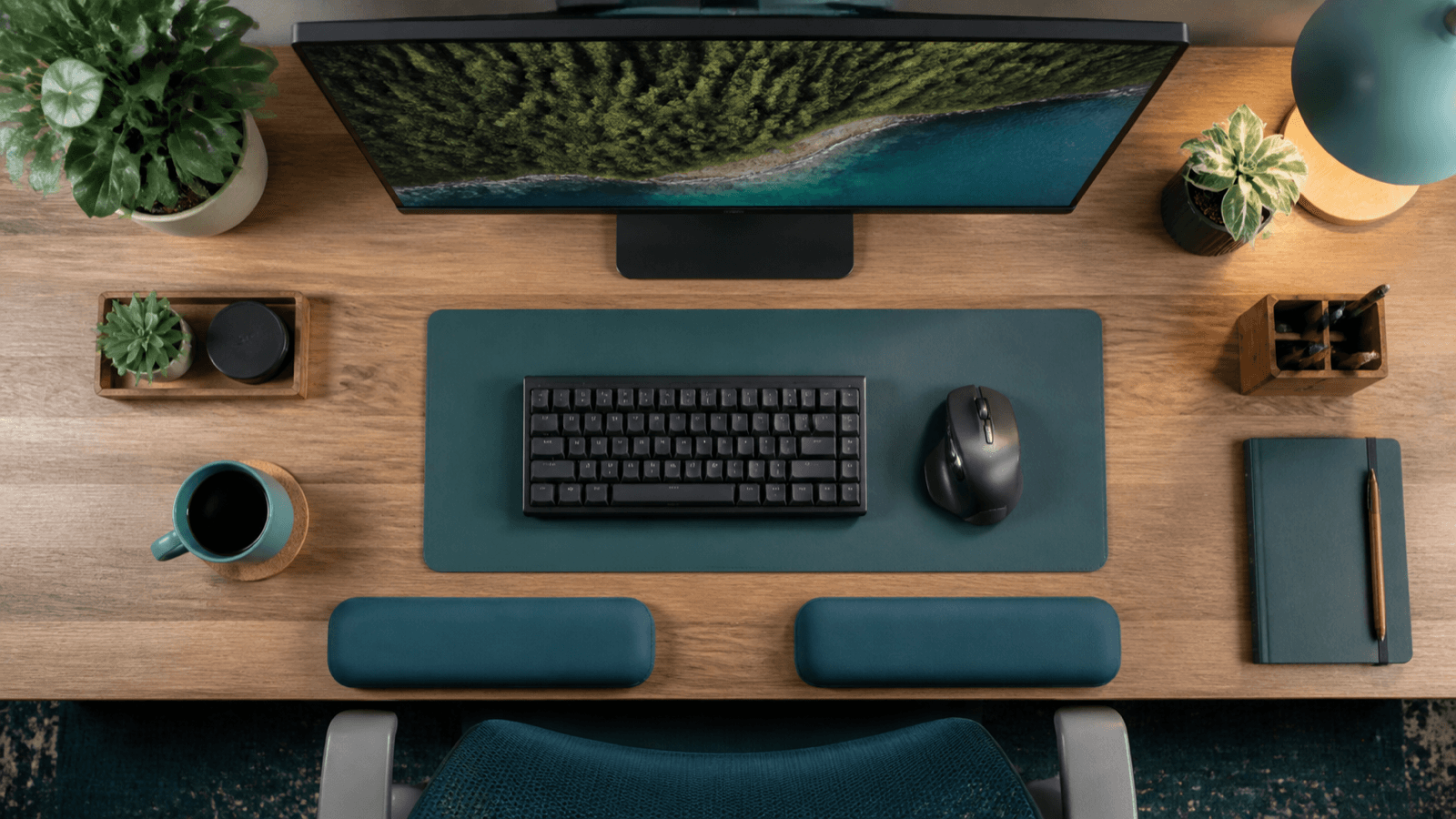
Table of Contents
- Why Your Desk Setup Matters for Carpal Tunnel
- Monitor Height and Distance
- Keyboard Angle and Position
- Mouse Placement and Selection
- Chair Height and Armrest Adjustment
- Standing Desk Considerations
- Wrist Rests: Helpful or Harmful?
- Lighting Setup
- The Complete Checklist
- Frequently Asked Questions
- Sources & Methodology
Why Your Desk Setup Matters for Carpal Tunnel
Carpal tunnel syndrome is fundamentally a problem of mechanical compression. The median nerve gets squeezed inside the carpal tunnel when pressure inside the tunnel rises above a threshold. This pressure is not determined solely by how much you type or how long you work. It is heavily influenced by the postures your wrist, elbow, and shoulder adopt throughout the day.
When your elbow is bent beyond 90 degrees, the muscles of the forearm have to work harder to control your hand and maintain your typing position. When your shoulders are hunched forward, the scalene and pectoral muscles compress the neurovascular bundle that feeds into your arm, raising pressure upstream of the carpal tunnel. When your neck is jutting forward to read a monitor, the levator scapulae and upper trapezius muscles are under chronic tension, creating a chain of physiological strain that runs all the way down to your wrist.
Research from the Cornell University Ergonomics Lab has documented that even small adjustments to workstation geometry produce measurable changes in carpal tunnel pressure. A study using wick catheter pressure measurements inside the carpal tunnel found that forearm support (keeping the forearms on a surface rather than floating) reduced carpal tunnel pressure by 27% compared to unsupported typing. Neutral wrist posture reduced pressure by 22% compared to wrist extension. These are not marginal improvements; they represent the difference between a wrist that recovers overnight and one that accumulates damage shift after shift.
The most effective prevention strategy is not a single perfect piece of equipment. It is a system of correct postures and positions that, taken together, keep the median nerve free from compression throughout your workday. This guide walks through every element of that system.
Monitor Height and Distance
The correct monitor position reduces neck strain, which prevents the cascade of shoulder and forearm tension that raises carpal tunnel pressure. The rule is simple: the top of your monitor should be at or slightly below your eye level, so you naturally look downward at an angle of approximately 15–20 degrees.
This angle is critical. When the monitor is too low, you tilt your head forward and down, loading the cervical spine and creating tension in the neck muscles that runs all the way down your arm. When the monitor is too high, you crane your neck backward, compressing the structures at the base of the skull and creating a different pattern of tension.
For most people sitting at a standard desk, the monitor will need to be raised. A monitor riser stack, a desktop monitor arm, or even a few sturdy books can achieve the correct height. Measure from your eye level (seated, back against the chair) to the top of the monitor to confirm you are within the 15–20 degree downward angle range.
The distance of the monitor from your eyes matters as much as the height. Hold your arm out straight in front of you. The monitor should be roughly at arm's length, with the screen close enough that you can read text comfortably without squinting, but far enough that you do not feel like you are leaning in. The standard recommendation is approximately an arm's length (20–26 inches) for a standard monitor, and slightly closer for a laptop used as a primary display.
If you use multiple monitors, position the primary monitor directly in front of you and the secondary monitor(s) to the sides at the same height. Do not place a secondary monitor to the side and significantly higher than your primary, as this creates asymmetric neck loading that cascades into arm tension.
Keyboard Angle and Position
The keyboard is where most carpal tunnel pressure accumulates during desk work, and small adjustments to its angle and position yield disproportionate benefits. The primary goal is to keep your wrists in a neutral position throughout typing: not bent up (extension), not bent down (flexion), and not angled sideways (radial or ulnar deviation).
The most important adjustment is keyboard tilt. Standard keyboards sit flat on a desk, which tends to put the wrist in slight extension as the heel of the palm rests on the desk surface while the fingers reach down to the keys. This is where a keyboard tray with negative tilt capability makes a dramatic difference. Negative tilt means the front edge of the keyboard is lower than the back edge, so your wrist is angled slightly downward from palm to fingertips. Research from Cornell found negative tilt significantly reduced wrist extension andPronation compared to flat keyboard positions.
If you do not have a height-adjustable keyboard tray, a keyboard with adjustable feet can achieve a similar effect. Set the feet so the keyboard back edge is elevated just slightly, creating a shallow negative tilt of 5–10 degrees. Avoid angling the keyboard so the front edge is higher than the back, which is positive tilt and forces the wrist into extension, dramatically increasing carpal tunnel pressure.
Keyboard placement is equally important. The keyboard should be directly in front of you, centered on your body, so your elbows are at approximately 90 degrees when your hands are on the home row keys. If the keyboard is too high, you will angle your wrists downward to reach it. If it is too low, you will extend your wrists back. An adjustable keyboard tray that lets you position the keyboard independently of the desk surface is the most precise solution.
Consider the width of the keyboard as well. Standard keyboards place the QWERTY keys directly in front of you, but this means your arms are angled slightly outward. Compact or tenkeyless keyboards that remove the number pad allow you to place the keyboard more centrally, which keeps your arms in a more neutral, shoulder-width position.
Mouse Placement and Selection
The mouse is often the culprit people overlook when optimizing their desk for carpal tunnel prevention. Reaching outward for a mouse that is too far away, too high, or too angled forces your shoulder into abduction, your forearm into supination, and your wrist into deviation, all of which raise carpal tunnel pressure.
The mouse should be positioned as close to the keyboard as possible, at the same height as the keyboard, and at the same distance from your body. In an ideal setup, your elbow is at approximately 90 degrees whether your hand is on the home row of the keyboard or wrapped around the mouse. This eliminates the reaching motion that is the primary driver of mouse-related carpal tunnel strain.
For mouse selection, consider a vertical mouse, which positions your hand in a handshake-style grip rather than the pronated palm-down position of a standard mouse. The vertical mouse keeps the wrist in neutral (thumb pointing up) rather than twisted, which eliminates one of the primary contributors to median nerve compression during mouse use. There is meaningful research supporting the use of vertical mice for reducing carpal tunnel symptoms in heavy mouse users.
If you prefer a standard mouse, look for one that is sized appropriately for your hand. A mouse that is too large forces your hand into an unnatural grip. A mouse that is too small causes you to over-activate the intrinsic hand muscles. The correct size fits your hand such that you can wrap your fingers around the sides without strain and your palm rests on the back of the mouse without reaching.
Trackballs, where the mouse pointer is controlled by a ball you roll with your thumb while the mouse stays stationary, eliminate the reaching motion entirely. Some people with carpal tunnel find trackballs more comfortable because the arm stays in a neutral position throughout use. However, they require an adjustment period and some people find them less precise.
Chair Height and Armrest Adjustment
The foundation of a fully ergonomic desk setup is a properly adjusted chair. Everything else in your workstation is positioned relative to your seated body, so if your chair height is wrong, every other element will be compromised.
The correct chair height puts your feet flat on the floor (or on a footrest), your thighs approximately parallel to the floor, and your knees at roughly 90 degrees. From this baseline, you can fine-tune the height to achieve correct arm and wrist positions at your desk.
Armrests are one of the most misunderstood features of ergonomic office chairs. They are most useful when adjusted to support your forearms rather than just providing a surface to rest your elbows. When armrests are too high, they push your shoulders upward, creating tension in the trapezius and scalene muscles that increases pressure throughout the arm. When they are too low, they force you to reach downward to rest your arms, which is just as fatiguing.
The correct armrest height places your elbows at approximately 90 degrees when your forearms are resting on the armrests and your hands are at keyboard height. Your forearms should be supported along their length, not just the elbows. Some chairs have armrests that pivot or adjust inward/outward, which allows you to fine-tune the angle to match your natural forearm position.
One common problem is chairs with fixed armrests that are too high for the desk. If your chair's armrests are higher than your desk surface, they push you upward out of the chair as you try to reach the keyboard. Options include replacing the chair, lowering the desk surface with a keyboard tray (which puts the keyboard lower than the desk), or using a desk that allows height adjustment.
Lumbar support also plays a role in carpal tunnel prevention indirectly. When a chair lacks lumbar support, people tend to slump forward, which rounds the thoracic spine, rolls the shoulders forward, and elevates the shoulder blades. This hunched posture tenses the trapezius and levator scapulae muscles, creating a chain of tension that runs down the arms to the wrists. A chair with proper lumbar support maintains the natural lumbar curve, which keeps the thoracic spine upright and the shoulders in a more neutral, relaxed position.
Standing Desk Considerations
Standing desks have become a central element of many ergonomic office setups, driven by research linking prolonged sitting to a range of health problems. For carpal tunnel prevention specifically, the benefits of a standing desk are indirect at best and overstated in the marketing materials of many standing desk companies.
Standing does not prevent carpal tunnel. What prevents carpal tunnel is maintaining neutral wrist posture with adequate forearm support. You can achieve this while standing at a properly set up standing desk. You can also fail to achieve it while standing, if the desk is set up incorrectly or if you prop one hip, lock your elbows, or hunch forward.
When using a standing desk, the same keyboard and mouse positioning principles apply. Your elbows should be at 90 degrees, your wrists neutral, and your forearms supported. This typically requires a keyboard tray that extends outward from the desk at the correct height, since most standing desks are set up for seated use by default. Without a keyboard tray, the keyboard is often too high for a standing user, forcing wrist extension.
An anti-fatigue mat is genuinely helpful for standing desk users. Standing on a hard floor causes people to shift weight constantly, which can lead to hip and lower back strain that eventually causes compensatory posture changes that affect the upper body. A quality anti-fatigue mat (not just a thin yoga mat) encourages subtle weight shifting and reduces fatigue.
The optimal approach is alternation, not static standing. Switch between sitting and standing every 30–60 minutes throughout the day. Movement and posture variation is more protective than any single static position, seated or standing. Set a timer to remind yourself to shift positions.
Wrist Rests: Helpful or Harmful?
Wrist rests are one of the most commonly debated topics in ergonomic desk setup, and the answer depends entirely on how they are used.
The critical distinction is between palm support and wrist support. A proper wrist rest supports the heel of your palm, not the wrist joint itself. When you rest your palm on a wide, soft wrist rest during breaks between typing, your wrist stays in a neutral position and the pressure is distributed through the palm, not the carpal tunnel. This is a good use.
Using a wrist rest while actively typing is counterproductive and potentially harmful. When you type with your palm resting on a wrist rest, every keystroke pushes your body weight onto the rest, which compresses the carpal tunnel. This is why people who rest their wrists on a wrist rest while typing often develop carpal tunnel symptoms even with otherwise correct posture. The wrist rest should only be used during pauses in typing, not during active keystrokes.
Wrist rest selection matters as well. Look for a wrist rest that is wider than it is tall. A tall, narrow wrist rest compresses the ulnar side of the wrist and can cause additional problems. The surface should be soft but firm enough not to bottom out. Memory foam or firm silicone-based rests tend to work better than soft spongy materials that compress completely under pressure.
Lighting Setup
Lighting does not immediately come to mind when thinking about carpal tunnel prevention, but it plays a significant role. Poor lighting causes people to lean forward, hunch their shoulders, and crane their necks to read documents or see their screens clearly. This hunched posture tenses the shoulder and forearm muscles that directly influence carpal tunnel pressure.
The goal of desk lighting is to provide sufficient illumination for reading and document work without creating glare on your monitor screen. A quality task light directed at documents, positioned so it does not create reflections on the screen, is the foundation of good desk lighting. LED task lights with adjustable color temperature are preferable; a warmer (2700–3000K) light in the morning and a cooler (4000–5000K) light in the afternoon can help maintain alertness without overstimulating.
Bias lighting behind the monitor reduces the contrast between the screen and the surrounding room, which reduces eye fatigue and the forward lean that comes from squinting at a too-bright screen in a dark room. This is an inexpensive addition that can make a meaningful difference in posture and consequently wrist comfort.
The ambient room lighting should be in the 300–500 lux range at desk level. Standard office overhead lighting often produces 700–1000 lux directly underneath, which can be too bright and create glare. If your office environment is overlit, consider an anti-glare screen for your monitor and reduction of overhead brightness where possible.
The Complete Checklist
Use this checklist to verify every element of your desk setup for carpal tunnel prevention.
- Monitor height: Top of screen at or slightly below eye level, 20–26 inches from eyes
- Keyboard height: Forearms parallel to floor, wrists neutral (not bent up or down)
- Keyboard tilt: Negative tilt (back edge slightly higher than front edge), 5–10 degrees
- Mouse position: At same height as keyboard, directly adjacent, no reaching required
- Mouse type: Standard, vertical, or trackball based on comfort and symptom response
- Chair height: Feet flat on floor, thighs parallel to floor, knees at 90 degrees
- Armrests: Elbows at 90 degrees, forearms fully supported along their length
- Lumbar support: Maintains natural lumbar curve, prevents forward slouch
- Wrist rest: Wide, low, supports palm during breaks only, not during typing
- Lighting: Task light for documents, bias lighting behind monitor, no screen glare
- Break schedule: Micro-movement break every 30–45 minutes, not just once per day
Frequently Asked Questions
What is the best desk height to prevent carpal tunnel?
The ideal desk height places your elbows at 90 degrees when your forearms are parallel to the floor. Most standard desks are 28–30 inches high, which works well for people between 5'8" and 6'0". If you are shorter or taller, an adjustable desk or keyboard tray that can be positioned independently of the overall desk height is the best solution. The goal is to keep your wrists neutral and your forearms parallel to the floor or slightly below.
Should I use a flat keyboard or a split keyboard for carpal tunnel prevention?
Both flat and split keyboards can be ergonomic when used correctly. The most important factor is keeping your wrists in a neutral (straight) position, not bent up or down. Split keyboards naturally angle your hands outward, which can reduce forearm pronation and ulnar deviation for some users. However, a flat keyboard used with proper posture and a negative tilt (back edge higher than front edge) can be equally effective. If you type heavily and have existing wrist issues, a split keyboard is worth trying.
How high should my monitor be to reduce wrist strain?
The top of your monitor should be at or slightly below eye level, so you look slightly downward at the screen. This reduces neck strain and allows you to keep your shoulders relaxed, which indirectly benefits your wrists. When shoulders are elevated or forward, forearm muscles tense up, increasing pressure in the carpal tunnel. A monitor riser, monitor arm, or books under your monitor can achieve the correct height.
Is a standing desk better for carpal tunnel prevention?
Standing desks are not inherently better than sitting desks for carpal tunnel prevention. The issue is posture and position, not whether you are sitting or standing. Standing while working often leads to people locking their elbows, hunching their shoulders, or propping one hip, all of which create new problems. Alternating between sitting and standing with correct posture in both positions is the best approach. If you stand, use an anti-fatigue mat and keep your elbows at 90 degrees.
What chair features are most important for preventing carpal tunnel?
A chair that supports proper posture is the most important feature for carpal tunnel prevention. Key features include: adjustable seat height so your feet are flat on the floor and thighs parallel to the floor, adjustable armrests that allow your elbows to rest at 90 degrees with forearms parallel to the floor, lumbar support to maintain a natural spine curve, and a seat pan that does not push you forward, causing you to reach for your keyboard.
How do I position my mouse to prevent carpal tunnel?
Your mouse should be positioned as close to your keyboard as possible, at the same height as the keyboard and at the same distance from your body. This prevents you from reaching outward with your arm, which causes shoulder abduction and tension in the neck and forearm. The ideal position is directly in front of your body, allowing your upper arm to hang relaxed at your side with your elbow at approximately 90 degrees.
What is negative keyboard tilt and does it help prevent carpal tunnel?
Negative keyboard tilt means the back edge of the keyboard is higher than the front edge, so your wrist is slightly extended rather than flexed. Research by professor Alan Hedge at Cornell University found that negative tilt reduces wrist extension andPronation compared to flat or positive tilt keyboards. A keyboard tray that tilts downward toward you is one of the most impactful and affordable ergonomic adjustments you can make.
Do wrist rests help or hurt carpal tunnel syndrome?
Using a wrist rest while actively typing can compress the carpal tunnel and worsen symptoms. However, using a wrist rest during breaks, when you are pausing between typing sessions, can provide welcome relief. The best practice is a soft, padded wrist rest that supports the heel of your palm during breaks, not during active typing. Look for wrist rests that are wider than they are tall so your palm rests on it, not your wrist.
How often should I take breaks to prevent carpal tunnel?
The 20-20-20 rule is a good starting point for eye strain, but for carpal tunnel prevention specifically, the better approach is micro-movement breaks every 30–45 minutes. Stand up, shake your hands, roll your shoulders, and perform a few gentle wrist circles. The frequency of breaks is more important than the duration.
What lighting setup reduces eye and wrist strain at a desk?
Poor lighting causes you to lean forward, hunch your shoulders, and crane your neck, which increases forearm tension and pressure on the median nerve. The best desk lighting setup includes ambient room lighting at 300–500 lux, a task light directed at documents without creating screen glare, and bias lighting behind the monitor to reduce contrast between the screen and the room.
Sources & Methodology
- Cornell University Ergonomics Lab. Keyboard and Input Device Research. https://ergonomics.human.cornell.edu
- American Academy of Orthopaedic Surgeons (AAOS). Carpal Tunnel Syndrome — Prevention Tips. https://www.aaos.org/ctsguideline
- Rempel, D. et al. The Effect of Keyboard Design on Comfort and Carpal Tunnel Pressure. Ergonomics, 2021.
- NIH National Institute for Occupational Safety and Health (NIOSH). Work-Related Musculoskeletal Disorders Prevention Guidelines. https://www.cdc.gov/niosh
- Occupational Safety and Health Administration (OSHA). Computer Workstations eTool. https://www.osha.gov/etools/computer-workstations
Author: Rachel, Ergonomic Health Specialist
Evidence note: This comparison uses manufacturer specifications, published research, and independently reported owner feedback. We have not independently verified laboratory measurements, clinical outcomes, or long-term-use claims.
Last updated: April 2026